

Olivetin — One-Click Install
Give safe and simple access to predefined shell commands from a web interface.
Why install Olivetin with Web.Casa?
No manual Docker Compose needed. Web.Casa configures and starts everything.
Caddy auto-provisions SSL certificates. Reverse proxy works out of the box.
Monitoring, backups, updates, logs — manage all apps from one panel.
How to Install
Install Web.Casa first, then one-click install this app from the App Store.
OliveTin
OliveTin gives safe and simple access to predefined shell commands from a web interface.

Use cases
Safely give access to commands, for less technical people;
- eg: Give your family a button to
podman restart plex - eg: Give junior admins a simple web form with dropdowns, to start your custom script.
backupScript.sh --folder {{ customerName }} - eg: Enable SSH access to the server for the next 20 mins
firewall-cmd --add-service ssh --timeout 20m
Simplify complex commands, make them accessible and repeatable;
- eg: Expose complex commands on touchscreen tablets stuck on walls around your house.
wake-on-lan aa:bb:cc:11:22:33 - eg: Run long-lived commands on your servers from your cell phone.
dnf update -y - eg: Define complex commands with lots of preset arguments, and turn a few arguments into dropdown select boxes.
docker rm {{ container }} && docker create {{ container }} && docker start {{ container }}
Join the community on Discord to talk with other users about use cases, or to ask for support in getting started.
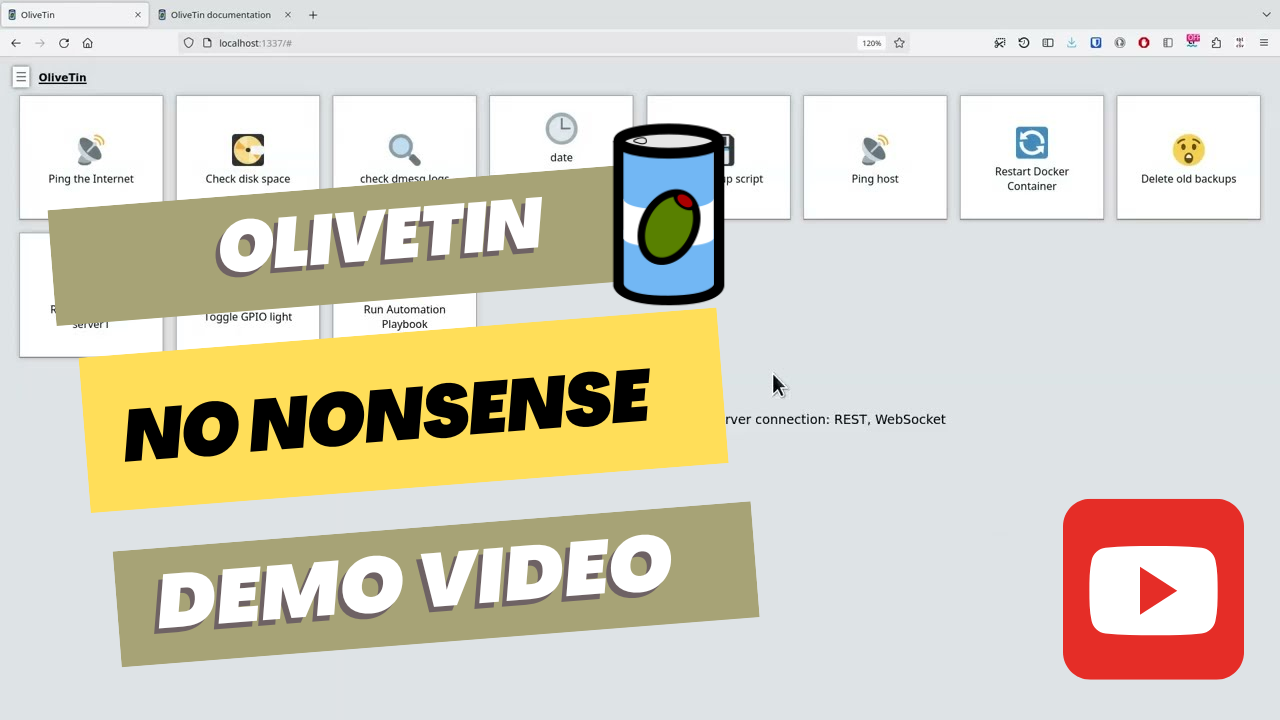
YouTube demo video
Features
- Responsive, touch-friendly UI - great for tablets and mobile
- Super simple config in YAML - because if it's not YAML now-a-days, it's not "cloud native" :-)
- Dark mode - for those of you that roll that way.
- Accessible - passes all the accessibility checks in Firefox, and issues with accessibility are taken seriously.
- Container - available for quickly testing and getting it up and running, great for the selfhosted community.
- Integrate with anything - OliveTin just runs Linux shell commands, so theoretially you could integrate with a bunch of stuff just by using curl, ping, etc. However, writing your own shell scripts is a great way to extend OliveTin.
- Lightweight on resources - uses only a few MB of RAM and barely any CPU. Written in Go, with a web interface written as a modern, responsive, Single Page App that uses the REST/gRPC API.
- Good amount of unit tests and style checks - helps potential contributors be consistent, and helps with maintainability.
Documentation
All documentation can be found at http://docs.olivetin.app . This includes installation and usage guide, etc.
Quickstart reference for config.yaml
This is a quick example of config.yaml - but again, lots of documentation for how to write your config.yaml can be found at the documentation site.
- (Recommended) Linux package install (.rpm/.deb) install instructions
- Container (podman/docker) install instructions
- Docker compose install instructions
- Helm on Kubernetes install instructions
- Kubernetes (manual) install instructions
- .tar.gz (manual) install instructions
Put this config.yaml in /etc/OliveTin/ if you're running a standard service, or mount it at /config if running in a container.
# Listen on all addresses available, port 1337
listenAddressSingleHTTPFrontend: 0.0.0.0:1337

# Choose from INFO (default), WARN and DEBUG
logLevel: "INFO"

# Actions (buttons) to show up on the WebUI:
actions:
  # Docs: https://docs.olivetin.app/action-container-control.html
- title: Restart Plex
  icon: restart
  shell: docker restart plex

  # This will send 1 ping
  # Docs: https://docs.olivetin.app/action-ping.html
- title: Ping host
  shell: ping {{ host }} -c {{ count }}
  icon: ping
  arguments:
    - name: host
      title: host
      type: ascii_identifier
      default: example.com

    - name: count
      title: Count
      type: int
      default: 1

  # Restart http on host "webserver1"
  # Docs: https://docs.olivetin.app/action-ssh.html
- title: restart httpd
  icon: restart
  shell: ssh root@webserver1 'service httpd restart'
A full example config can be found at in this repository - config.yaml.
FAQ
Can I install Olivetin on Web.Casa?
Yes, Olivetin is available in the Web.Casa App Store. You can install it with one click from the Web.Casa panel — no need to manually write Docker Compose files or configure reverse proxies.
How do I install Olivetin on Web.Casa?
First install Web.Casa with curl -fsSL https://get.web.casa | bash, then search for "Olivetin" in the App Store and click install. Web.Casa automatically configures the Docker container, assigns ports, and sets up a Caddy reverse proxy.
What is the default port for Olivetin on Web.Casa?
The default port for Olivetin on Web.Casa is 1337. You can bind it to a custom domain through Web.Casa's Caddy reverse proxy, which automatically provisions HTTPS certificates.
Does Olivetin get automatic HTTPS after installation?
Yes. Web.Casa is built on Caddy, so after installing the app, simply bind a domain and Caddy will automatically provision and renew SSL certificates via Let's Encrypt — no manual configuration needed.
How do I back up Olivetin data?
Web.Casa has a built-in backup plugin that supports automatic backups of Olivetin data to local storage, S3, WebDAV, or SFTP. You can configure scheduled snapshots and retention policies to keep your data safe.
Related Apps

Adguard Home Sync
Synchronize AdGuard Home config to replicas

AFFiNE
AFFiNE is a workspace with fully merged docs, whiteboards and databases.

Atuin Server
Magical Shell History

Baïkal
Calendar + Contacts server

Barrage
Minimal Deluge WebUI with full mobile support

Bazarr
A companion application to Sonarr and Radarr that manages and downloads subtitles