

Why install MQTTX with Web.Casa?
No manual Docker Compose needed. Web.Casa configures and starts everything.
Caddy auto-provisions SSL certificates. Reverse proxy works out of the box.
Monitoring, backups, updates, logs — manage all apps from one panel.
How to Install
Install Web.Casa first, then one-click install this app from the App Store.
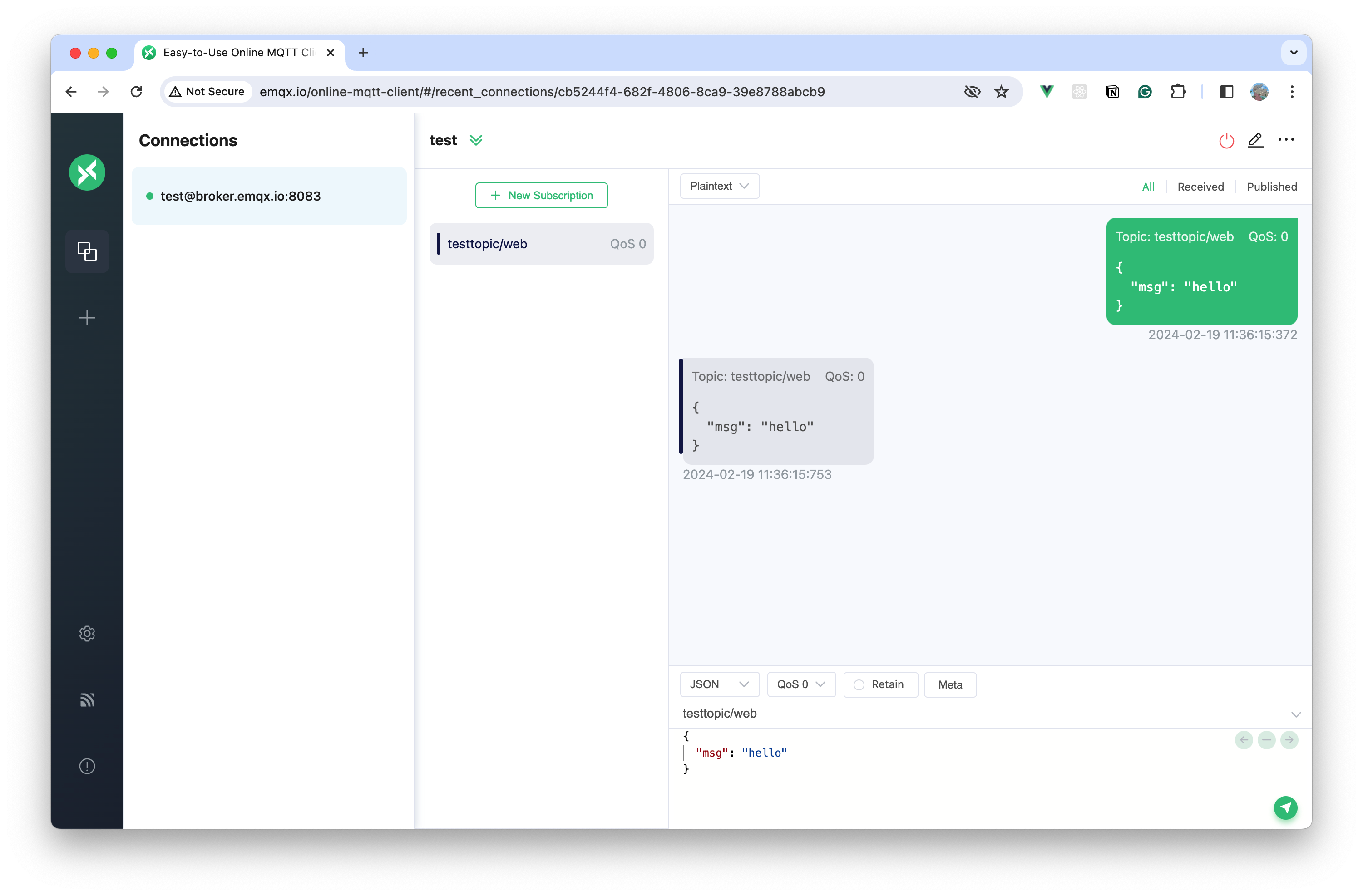
MQTTX is a cross-platform MQTT 5.0 client tool open sourced by EMQ, which can run on macOS, Linux and Windows, and supports formatting MQTT payload.
MQTTX simplifies test operation with the help of a familiar, chat-like interface. It’s easy and quick to create multiple, simultaneous online MQTT client connections, and can test the connection, publishing, and subscription functions of MQTT/TCP, MQTT/TLS, MQTT/WebSocket as well as other MQTT protocol features.
MQTT stands for MQ Telemetry Transport. It is a publish/subscribe, extremely simple and lightweight messaging protocol, designed for constrained devices and low-bandwidth, high-latency or unreliable networks.
Preview
Usage
See the MQTTX documentation or manual for details.
-
Get MQTT Broker Ready.
-
If you do not need to deploy the MQTT Broker locally, you can use the public MQTT 5.0 Broker provided by EMQX Cloud for testing:
Broker IP: broker.emqx.io Broker TCP Port: 1883 Broker SSL Port: 8883 -
To run MQTT Broker locally, use the Eclipse Mosquitto Tipi app. Follow the steps mentioned in its description to turn on Websockets so that the MQTTX web client can connect to it.
-
-
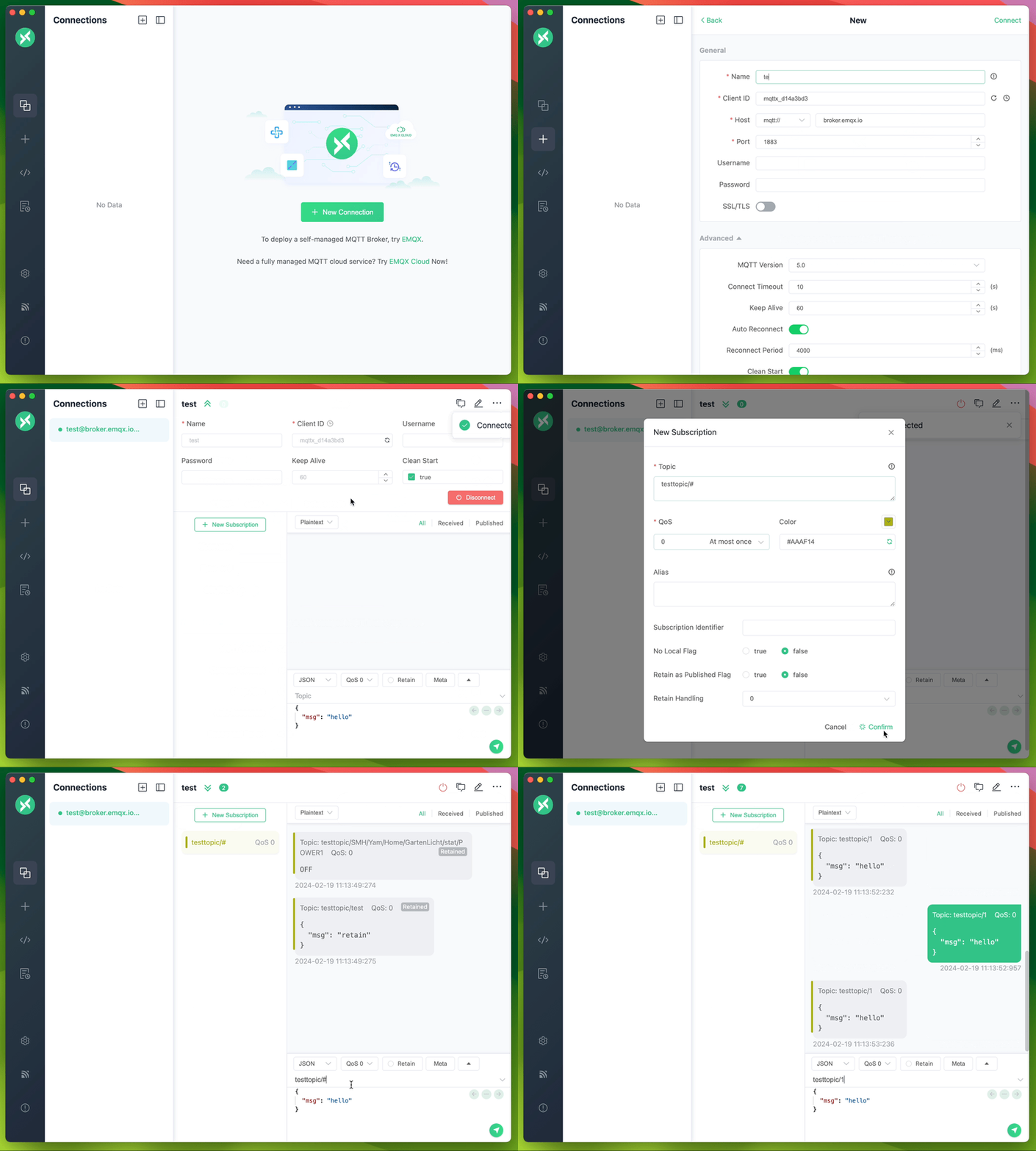
Connection configuration. Click the
+button in the left menu bar and fill in the corresponding required fields in the form. -
After the connection information is configured, click the
Connectbutton in the upper right corner to create a connection and connect to MQTT Broker. -
After the MQTT is connected successfully, you can perform MQTT publish and subscription tests.
Get Involved
- Follow @EMQTech on Twitter.
- If you have a specific question, check out our discussion forums.
- For general discussions, join us on the official Discord team.
- Keep updated on EMQX YouTube by subscribing.
Develop
Recommended version for Node environment:
- v16.*.*
# Clone
git clone [email protected]:emqx/MQTTX.git

# Install dependencies
cd MQTTX
yarn install

# Compiles and hot-reloads for development
yarn run electron:serve

# Compiles and minifies for production
yarn run electron:build
After the building is successful, the corresponding installation file for the successful build ing will appear in the dist_electron directory.
If you need to package it as an installation package for an independent operating system, please refer to the following command:
# For Windows
yarn run electron:build-win

# For Linux
yarn run electron:build-linux

# For macOS
yarn run electron:build-mac
Contributing
Please make sure to read the Contributing Guide before making a pull request.
Technology Stack
Resources
-
A series of blogs to help developers get started quickly with MQTT in PHP, Node.js, Python, Golang, and other programming languages.
-
We have selected popular MQTT client SDKs in various programming languages and provided code examples to help you quickly understand the use of MQTT clients.
License
Apache License 2.0, see LICENSE.
FAQ
Can I install MQTTX on Web.Casa?
Yes, MQTTX is available in the Web.Casa App Store. You can install it with one click from the Web.Casa panel — no need to manually write Docker Compose files or configure reverse proxies.
How do I install MQTTX on Web.Casa?
First install Web.Casa with curl -fsSL https://get.web.casa | bash, then search for "MQTTX" in the App Store and click install. Web.Casa automatically configures the Docker container, assigns ports, and sets up a Caddy reverse proxy.
What is the default port for MQTTX on Web.Casa?
The default port for MQTTX on Web.Casa is 8217. You can bind it to a custom domain through Web.Casa's Caddy reverse proxy, which automatically provisions HTTPS certificates.
Does MQTTX get automatic HTTPS after installation?
Yes. Web.Casa is built on Caddy, so after installing the app, simply bind a domain and Caddy will automatically provision and renew SSL certificates via Let's Encrypt — no manual configuration needed.
How do I back up MQTTX data?
Web.Casa has a built-in backup plugin that supports automatic backups of MQTTX data to local storage, S3, WebDAV, or SFTP. You can configure scheduled snapshots and retention policies to keep your data safe.
Related Apps

Adguard Home Sync
Synchronize AdGuard Home config to replicas

AFFiNE
AFFiNE is a workspace with fully merged docs, whiteboards and databases.

Atuin Server
Magical Shell History

Baïkal
Calendar + Contacts server

Barrage
Minimal Deluge WebUI with full mobile support

Bazarr
A companion application to Sonarr and Radarr that manages and downloads subtitles