

Why install Joplin Server with Web.Casa?
No manual Docker Compose needed. Web.Casa configures and starts everything.
Caddy auto-provisions SSL certificates. Reverse proxy works out of the box.
Monitoring, backups, updates, logs — manage all apps from one panel.
How to Install
Install Web.Casa first, then one-click install this app from the App Store.
Note taking and to-do application with synchronisation
- username: admin@localhost
- password: admin
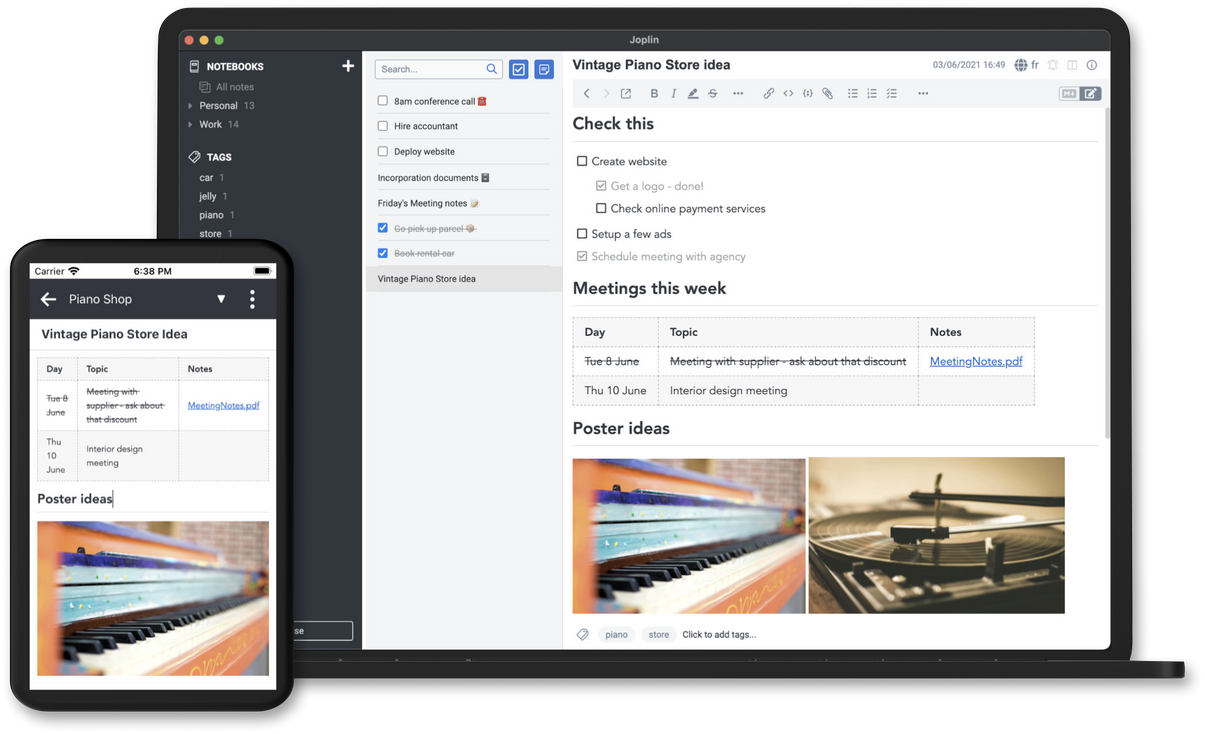
Joplin is a free, open source note taking and to-do application, which can handle a large number of notes organised into notebooks. The notes are searchable, can be copied, tagged and modified either from the applications directly or from your own text editor. The notes are in Markdown format.
Notes exported from Evernote can be imported into Joplin, including the formatted content (which is converted to Markdown), resources (images, attachments, etc.) and complete metadata (geolocation, updated time, created time, etc.). Plain Markdown files can also be imported.
The notes can be securely synchronised using end-to-end encryption with various cloud services including Nextcloud, Dropbox, OneDrive and Joplin Cloud.
Full text search is available on all platforms to quickly find the information you need. The app can be customised using plugins and themes, and you can also easily create your own.
The application is available for Windows, Linux, macOS, Android and iOS. A Web Clipper, to save web pages and screenshots from your browser, is also available for Firefox and Chrome.
FAQ
Can I install Joplin Server on Web.Casa?
Yes, Joplin Server is available in the Web.Casa App Store. You can install it with one click from the Web.Casa panel — no need to manually write Docker Compose files or configure reverse proxies.
How do I install Joplin Server on Web.Casa?
First install Web.Casa with curl -fsSL https://get.web.casa | bash, then search for "Joplin Server" in the App Store and click install. Web.Casa automatically configures the Docker container, assigns ports, and sets up a Caddy reverse proxy.
What is the default port for Joplin Server on Web.Casa?
The default port for Joplin Server on Web.Casa is 8099. You can bind it to a custom domain through Web.Casa's Caddy reverse proxy, which automatically provisions HTTPS certificates.
Does Joplin Server get automatic HTTPS after installation?
Yes. Web.Casa is built on Caddy, so after installing the app, simply bind a domain and Caddy will automatically provision and renew SSL certificates via Let's Encrypt — no manual configuration needed.
How do I back up Joplin Server data?
Web.Casa has a built-in backup plugin that supports automatic backups of Joplin Server data to local storage, S3, WebDAV, or SFTP. You can configure scheduled snapshots and retention policies to keep your data safe.
Related Apps

Adguard Home Sync
Synchronize AdGuard Home config to replicas

AFFiNE
AFFiNE is a workspace with fully merged docs, whiteboards and databases.

Atuin Server
Magical Shell History

Baïkal
Calendar + Contacts server

Barrage
Minimal Deluge WebUI with full mobile support

Bazarr
A companion application to Sonarr and Radarr that manages and downloads subtitles